
Because some applications require that a user session be opened on the console of the server and because when a reboot is made there can be cases where nobody is nearby to open a session with a username and password, we are going to see here how to open a session automatically upon reboot of the server.
We are going to use the "The User Accounts Control Panel" component here.
1. Open Start, and type netplwiz. You can also type control userpasswords2 if for some reason netplwiz doesn’t work.
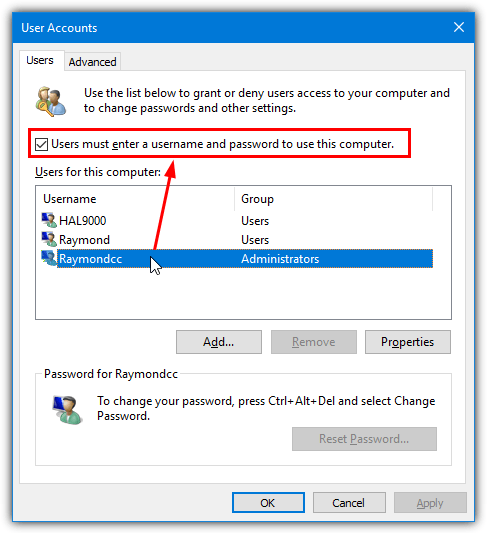
2. The User Accounts window will appear with a list of current users for the computer.
Click on the user name you want to log on automatically with and then uncheck the “Users must enter a user name and password to use this computer” checkbox.
Then click the OK button.
3. A dialog box will appear with the user name you selected in step 2.
Type the password for the user into the box and again in the confirm box, and press OK.
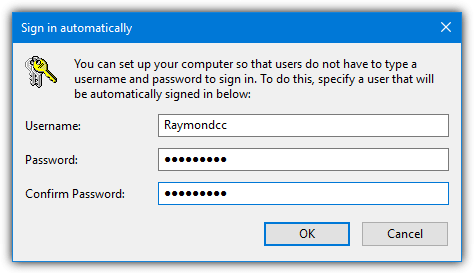
Once this is done, your autologon is ready.
Alternatively, you can also use the server's registry to configure the autologon. Here is the content of a typical .reg file on which you can insert the user account details that will be used to perform the autologon at next start :
Windows Registry Editor Version 5.00
[HKEY_LOCAL_MACHINE\SOFTWARE\Microsoft\Windows NT\CurrentVersion\Winlogon]
"AutoAdminLogon"="1"
"DefaultDomainName"="YOURDOMAIN.ext"
"DefaultUserName"="USERNAME"
"DefaultPassword"="CLEAR-PASSWORD"
[HKEY_LOCAL_MACHINE\SOFTWARE\Microsoft\Windows NT\CurrentVersion\Winlogon]
"AutoAdminLogon"="1"
"DefaultDomainName"="YOURDOMAIN.ext"
"DefaultUserName"="USERNAME"
"DefaultPassword"="CLEAR-PASSWORD"
Adapt the file with you own values, run the .reg file (or edit the registry directly), confirm that you want to apply it and reboot.
At the next server's start, Windows will use these credentials to perform the automatic logon.