Web Portal 2026 - Okta SSO Configuration
These instructions apply to TSplus Remote Access "Web Mobile" and Enterprise editions, versions 19.20.3.10 and later.
Please note that our new Web Portal 2026 is in beta and not ready for production use.
The Okta portion of this guide is intended only as an example. Managing and configuring your Okta environment is outside the scope of our support.
Please note that SSO authentication is currently supported only when users log in through your SSO portal. SSO will not be used if users go directly to the Remote Access server login page.
This is a complement to our official documentation:
https://docs.tsplus.net/tsplus/web-portal-with-sso/
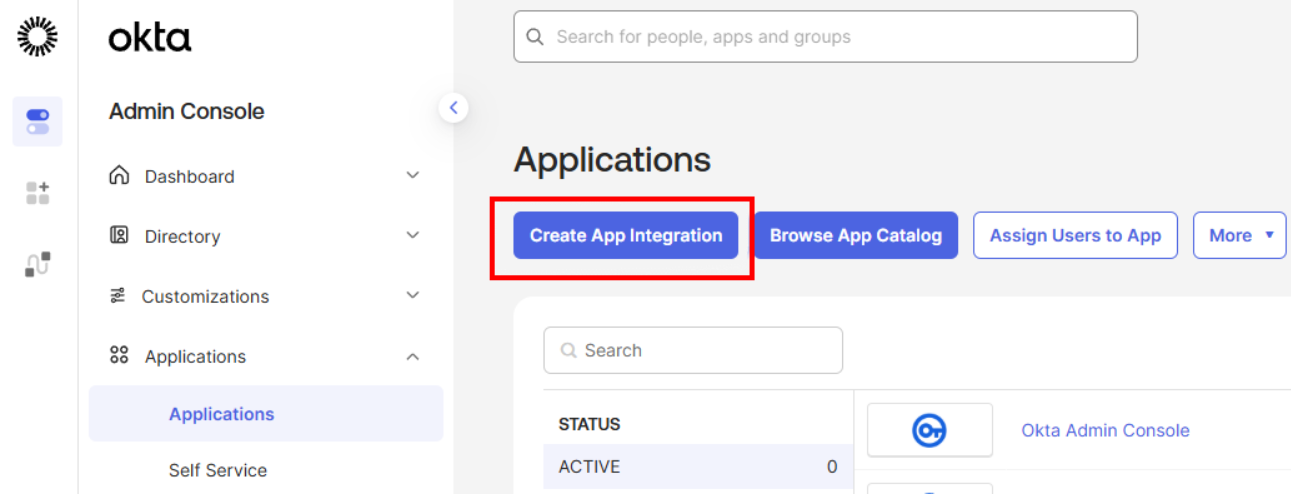
1. From the Okta Admin Console, navigate to Applications > Applications, and click "Create App Integration."
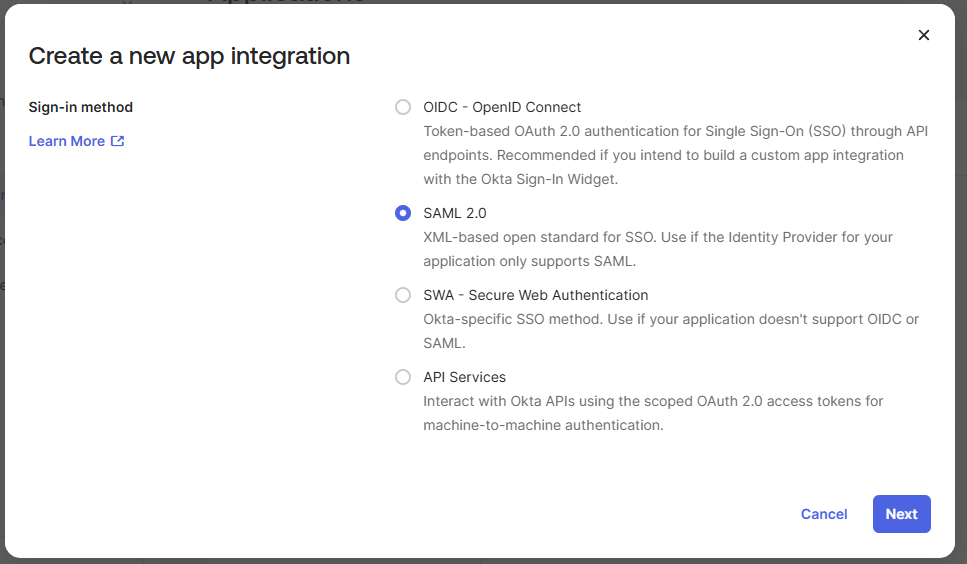
2. Select SAML 2.0, then click Next.
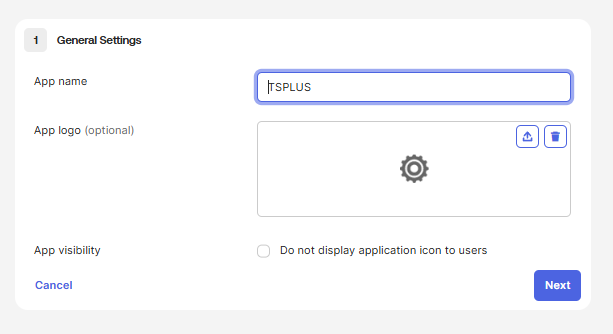
3. In the App Name field, provide any name you wish, then click Next. Please note that this name will be visible to your end users.
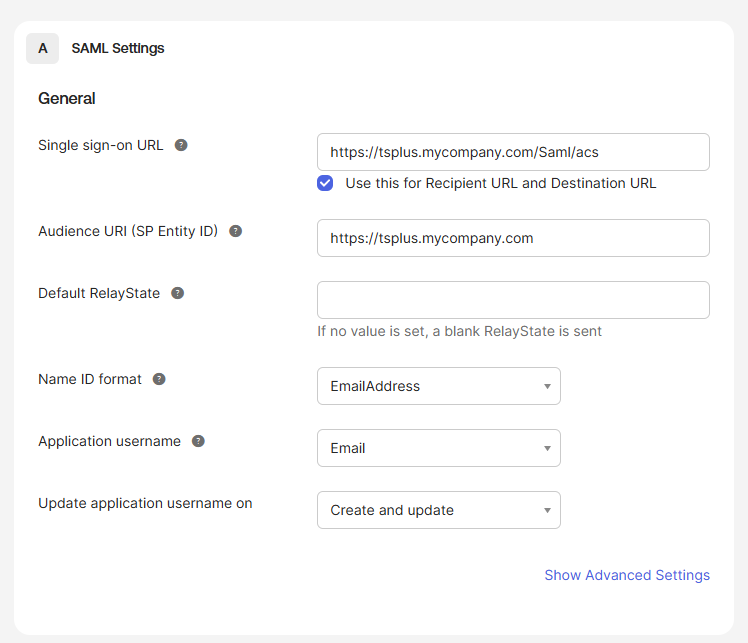
4. Fill out the following fields on the next screen. Leave everything else default:
- Single Sign-On URL: Enter the URL of your Remote Access logon page, with /Saml/acs appended. For example, if your Remote Access URL is https://tsplus.mycopany.com, then you would enter https://tsplus.mycompany.com/Saml/acs in this field.
- Audience URI (SP Entity ID): Enter the URL for your Remote Access login page. For example, if your Remote Access URL is https://tsplus.mycompany.com, then you would enter https://tsplus.mycompany.com in this field.
- Name ID Format: Select EmailAddress from the dropdown.
- Application Username: Select Email from the dropdown.
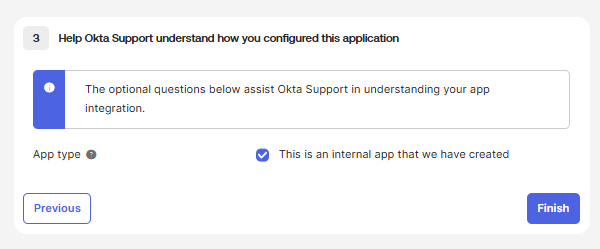
5. Select "This is an internal app that we have created," then select Finish.
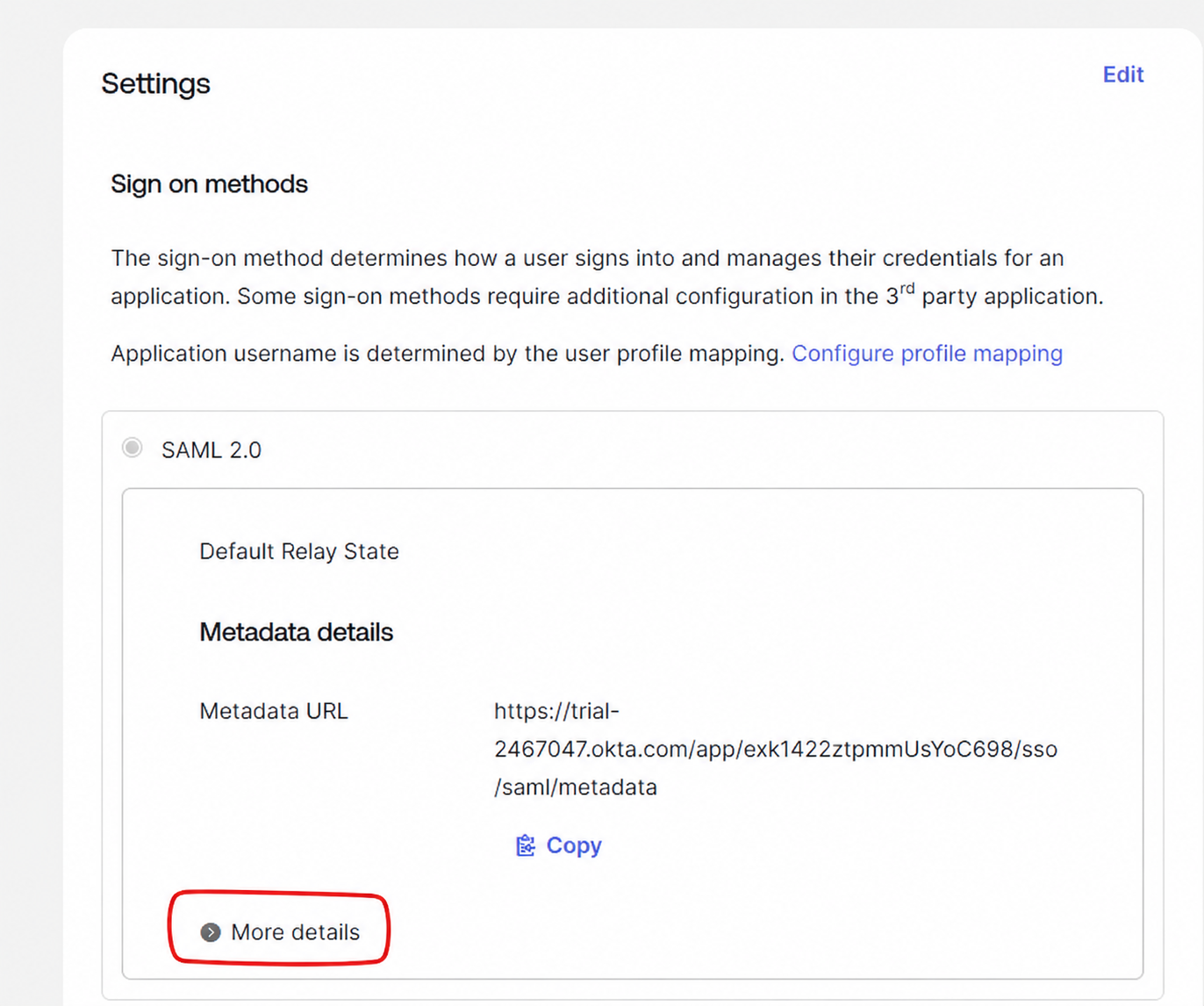
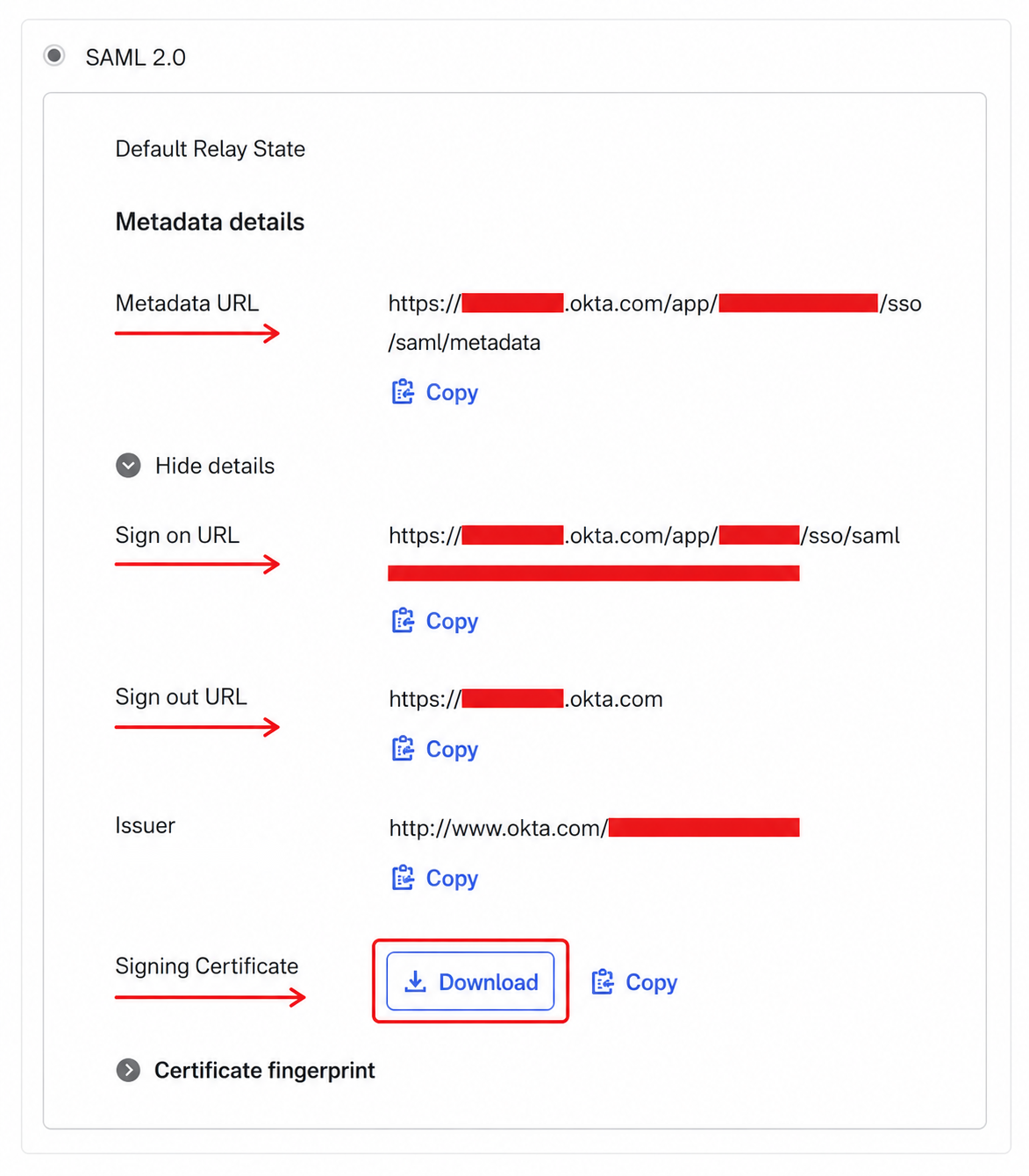
6. On the next screand Sign-Outn Console > Applications > Applications > click your app name > Sign-On tab), click More Details. Copy the Metadata URL, Sign on URL, Sign Out URL, and download the signing certificate.
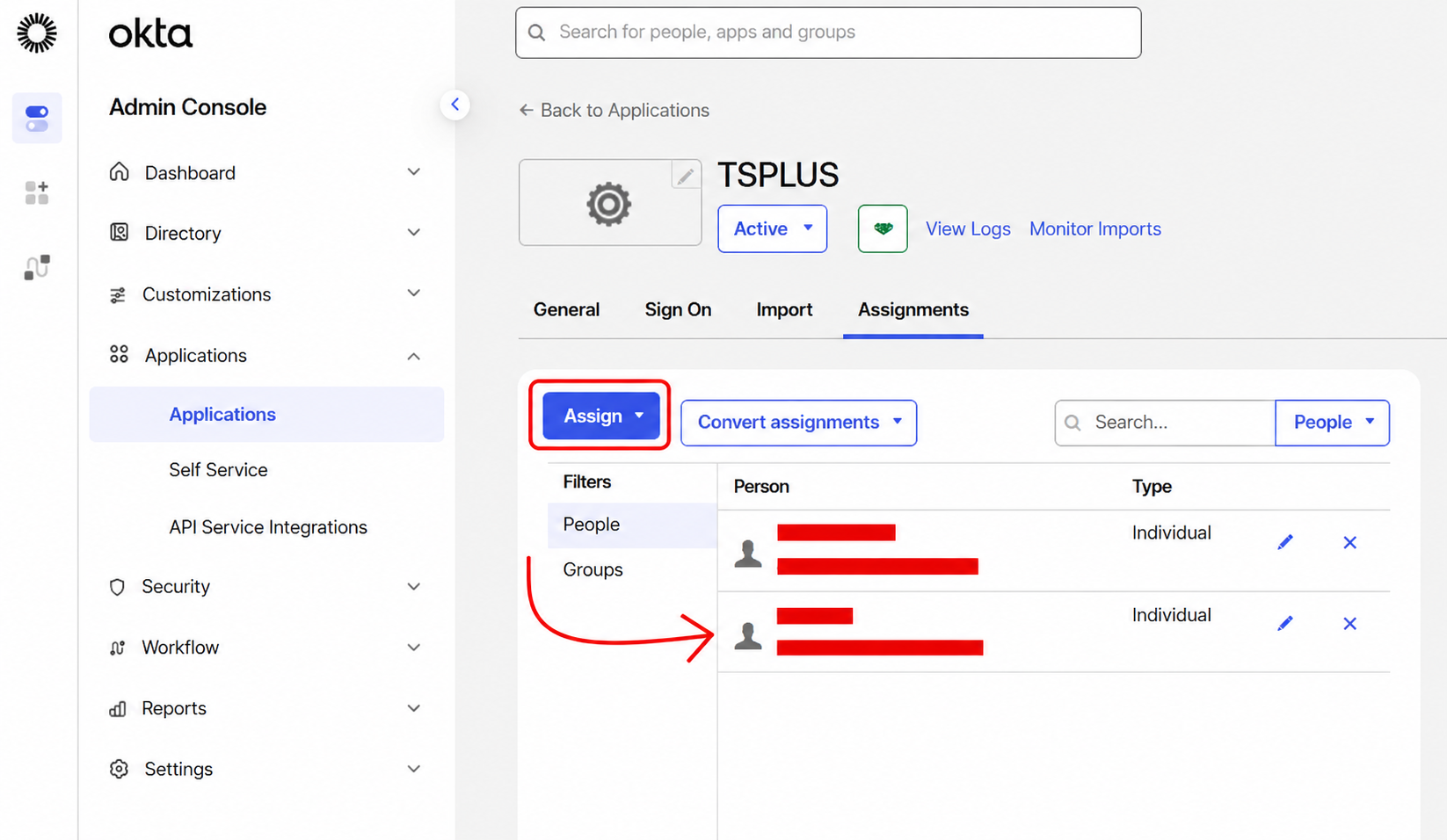
7. Go to Okta Admin Console > Applications > Applications > Click your application > Assignments, and assign your Okta users to your newly created application in Okta.
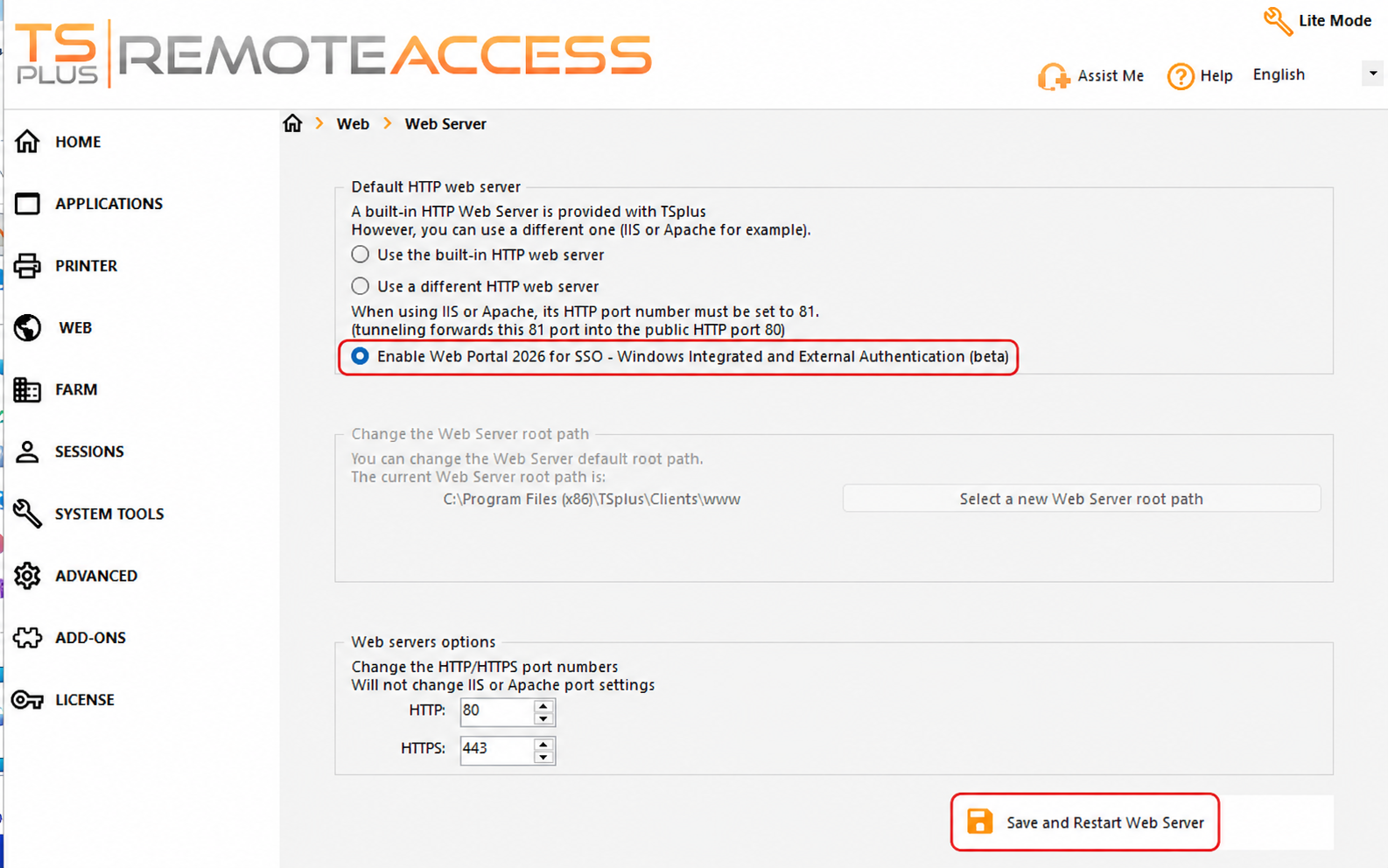
8. On the Remote Access server, go to AdminTool > Web > Web Server and select "Enable Web Portal 2026 for SSO..." then click the "Save and Restart Web Server" button.
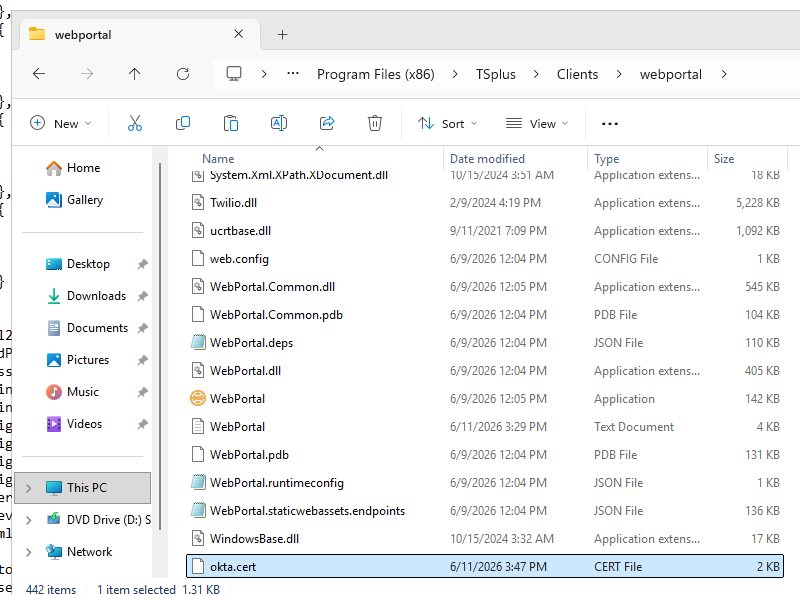
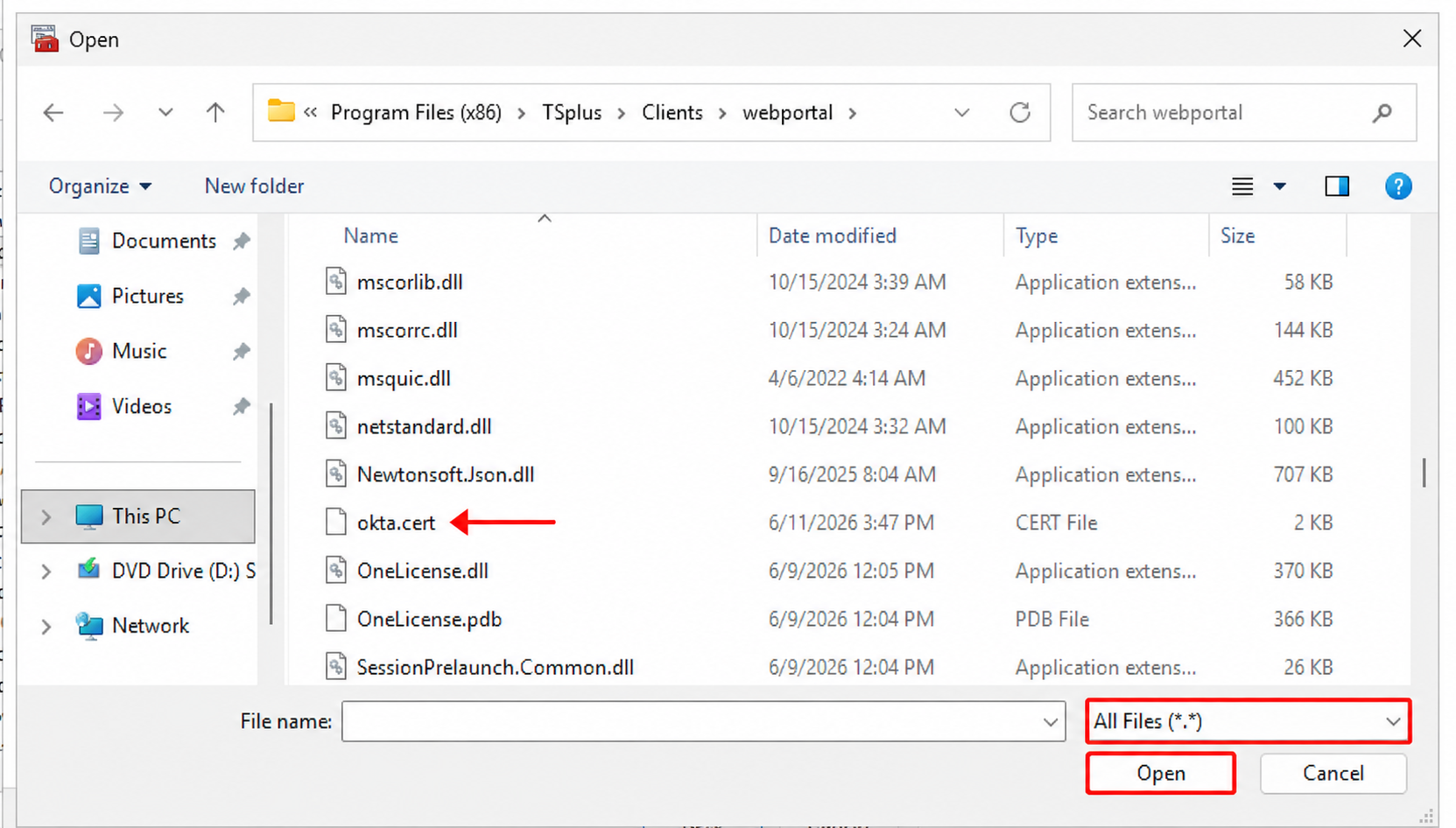
9. Copy the SSL certificate you downloaded from Okta in step 6 to your C:\Program Files (x86)\TSplus\Clients\webportal directory.
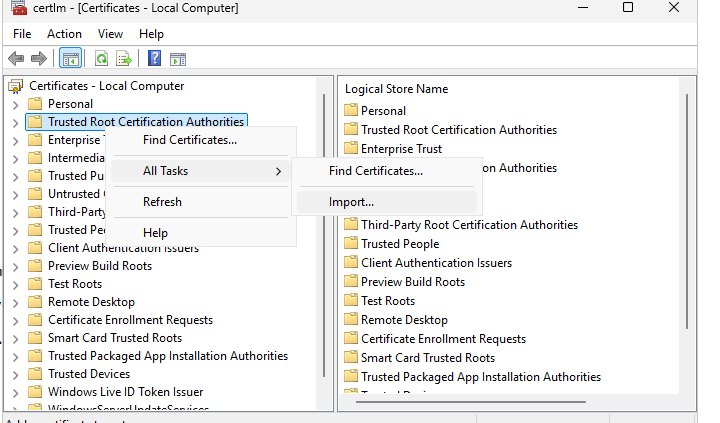
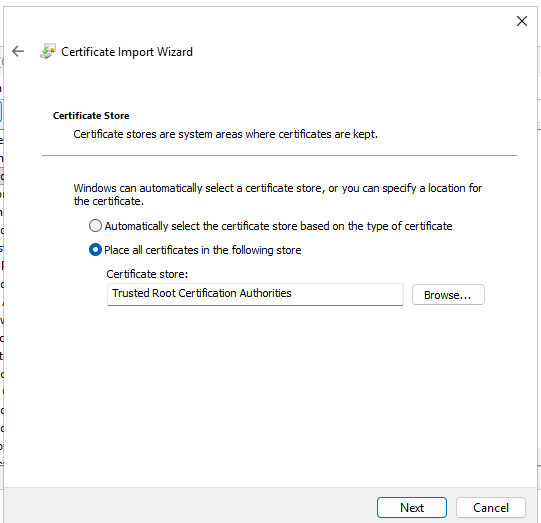
10. From the Windows Start menu, search for Run, then use it to open certlm.msc. Right-click Trusted Root Certification Authorities > All Tasks > Import, then import your Okta SSL certificate to the Trusted Root Certification Authorities store.
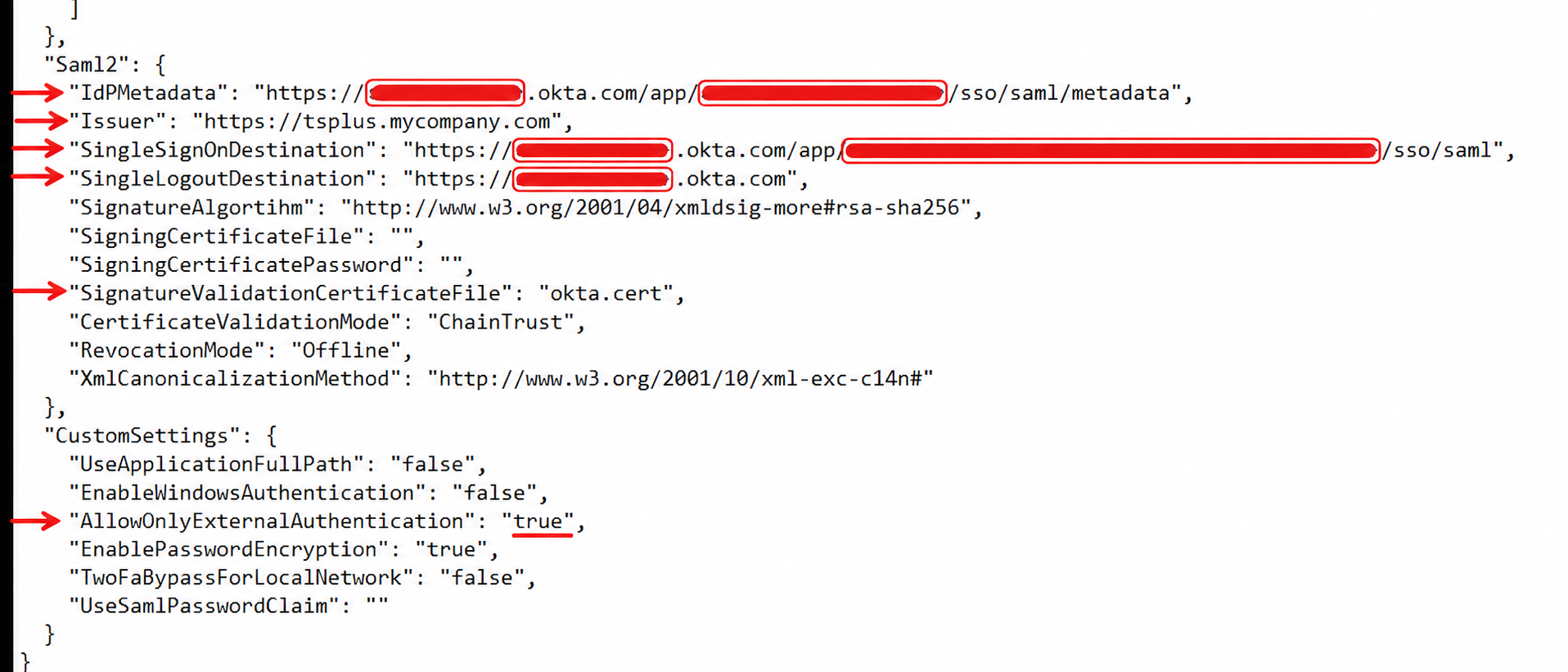
11. Using Notepad on your Remote Access server, open C:\Program Files (x86)\TSplus\Clients\webportal\appsettings.json, and make the following changes, then save the changes:
- Saml2 > IdPMetadata: This is the Metadata URL you copied from your Okta portal in step 6
- Saml2 > Issuer: This is the Audience URI you specified in step 4 of these instructions
- Saml2 > SingleSignOnDestination: This is the Sign On URL you copied from your Okta portal in step 6
- Saml2 > SingleLogoutDestination: This is the Sign Out URL you copied from your Okta portal in step 6
- Saml2 > SignatureValidationCertificateFile: The name of the certificate you downloaded from Okta in step 6, including the file extension (should be okta.cert)
- CustomSettings > AllowOnlyExternalAuthentication: Set this to true if Okta is the only authentication you want your Remote Access server to accept.
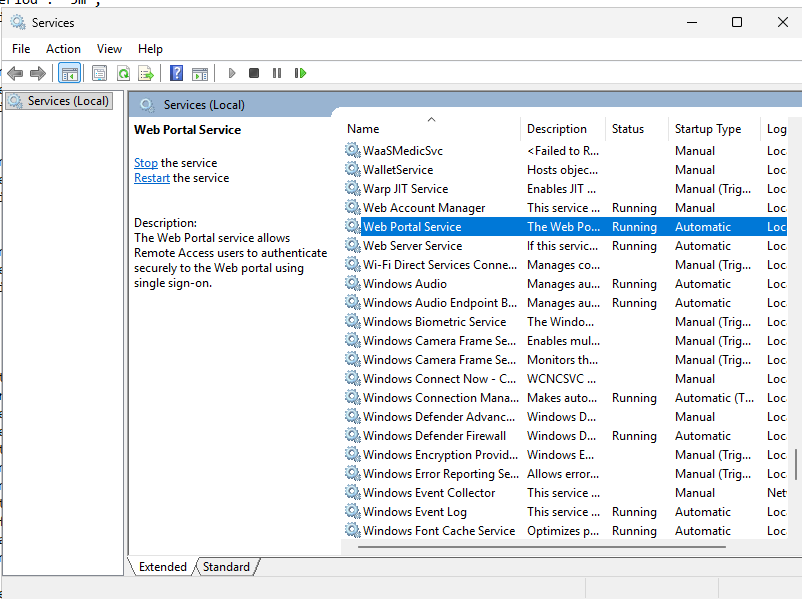
12. Restart the Windows service "Web Portal Service." Please note that this service must be restarted every time you make a change to the appsettings.js file.
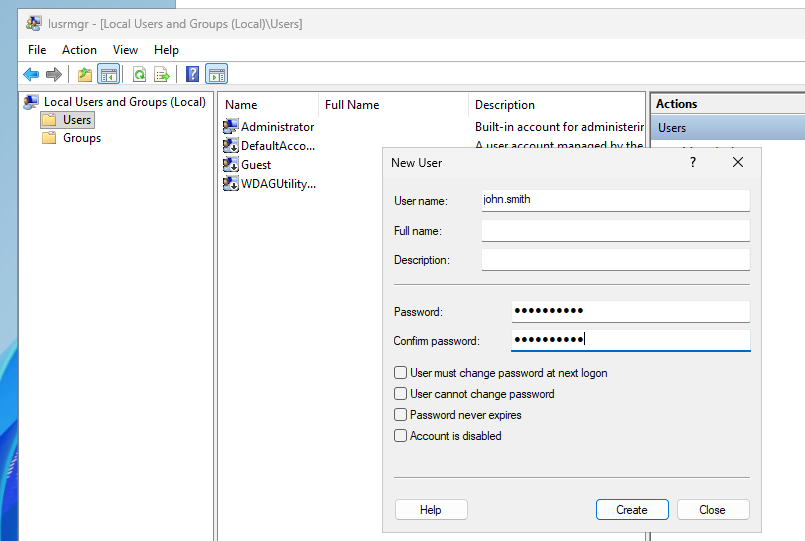
13. Go to AdminTool > System Tools > Users and Groups > Users, and add each user from your Entra ID portal you would like to be able to log in. Do not select "User must change password at next logon". The username should match everything in the user's Email Address in Okta before the "@" symbol. For example, if the username is john.smith@mycompany.com, then the local username should be john.smith.
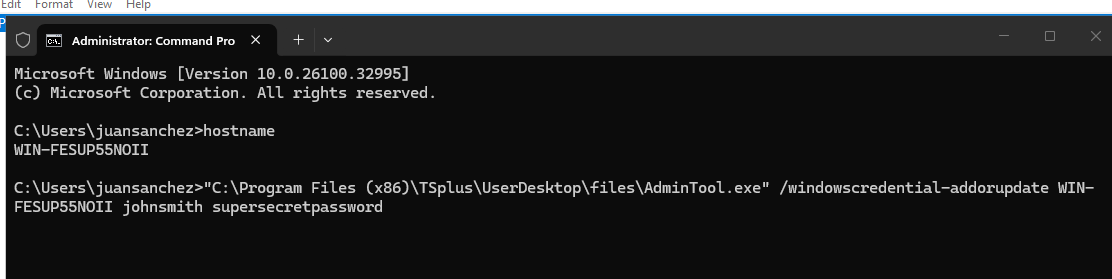
14. Open a command line (Run as Administrator), and run the command below for all your users. Please change the following parameters first. This must be done for each user account:
- MACHINE-NAME: This is your computer's hostname. If you're not sure what it is, open a command prompt and enter the command hostname. This will reveal your computer's hostname.
- localusernamegoeshere: This is the username you created in step 13.
- userslocalpassword: This is the password you gave to the local user account in step 13.
"C:\Program Files (x86)\TSplus\UserDesktop\files\AdminTool.exe" /windowscredential-addorupdate MACHINE-NAME localusernamegoeshere userslocalpassword
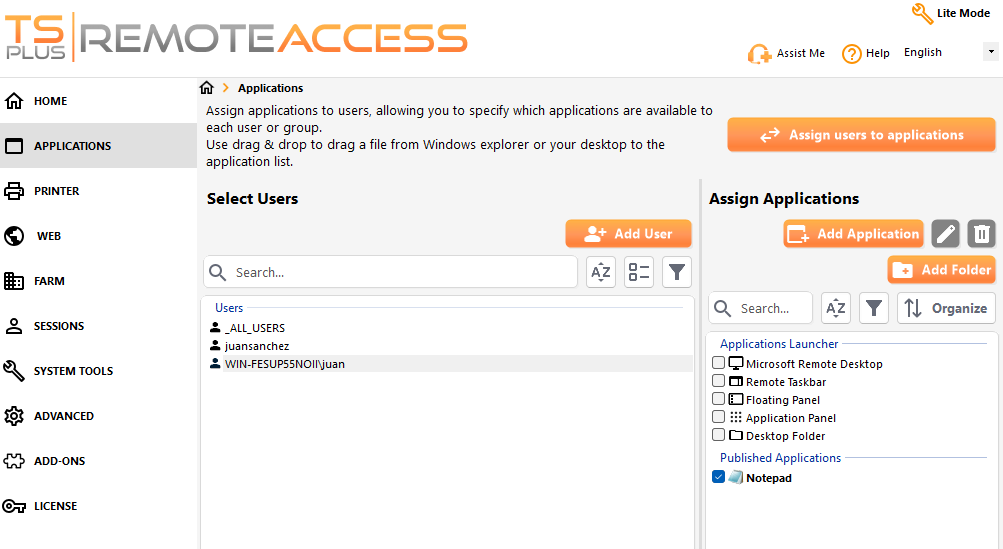
15. Go to the AdminTool > Application screen, and assign your users to applications (mandatory).
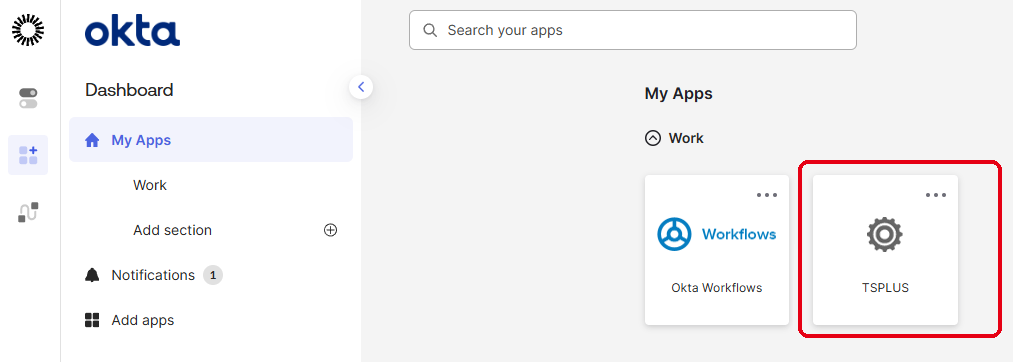
16. Direct your user to their SSO portal on https://youroktadomain.okta.com/app/UserHome, and have them click on the application you created to access the Remote Access server. It would be named whatever you typed in step 3.