
This guide provides a checklist to troubleshoot two specific RemoteApp issues :
The client remains stuck indefinitely on the "Configuring Remote Session..." message.
The remote application window (labeled "MS RemoteApp") freezes during use.
[!] IMPORTANT [!] To our users/admins: To ensure a fast and accurate diagnosis, please provide as many items from this checklist as possible (especially logs, screenshots, and environment context) when opening a support ticket for investigation.
#1. Version and Update Checks
- Confirm TSplus Remote Access is up to date on the server
- Run the Windows compatibility updates on the server (svcac.exe /updatekernel / Apply Windows Compatibility Updates)
- Ensure the TSplus Connection Client used by the user is the latest build.
- Ensure the OS file system is healthy by running the following commands in an elevated CMD :
sfc /scannowDism /Online /Cleanup-Image /RestoreHealth
- Check for antivirus/EDR interference on rdpinit.exe, rdpshell.exe, or the RemoteApp process itself at session startup — a delayed or blocked hook here can disrupt the RAIL handshake even when the application eventually launches (more details here)
- The administrator may attempt a clean reinstallation of both the TSplus Remote Access and the Connection Client.
#2. Connection Context & Environment
- Identify client type: RemoteApp client from web portal, generated client '.connect' file, standard RDP client
- Identify access port: RDP port vs Web port (using web port may help in some cases)
- Identify any potential network equipment / security solution involved :
To rule out the client device or external network equipment (firewalls, routers, or proxies) as the cause, the administrator should perform a local test. Create a .connect file or use the Web Portal directly from the server's own browser, targeting 127.0.0.2.
If the connection works locally but fails externally, the issue is likely related to the network infrastructure or the specific client device."
- Check if the user profile has already completed a full interactive session at least once (OOBE/privacy settings and first logon actions completed)
- Disable all client-side device redirections (printers, drives, clipboard, COM/smartcard ports) and retest — a failing printer driver, an unreachable mapped drive, or a smartcard timeout during device enumeration is a frequent cause of an indefinite stall at exactly this stage, entirely independent of TSplus
- Try deleting the following file from the client workstation : C:\Users\Username\RDP6\.connectCLIENT-NAME.txt
#3. RemoteApp-Specific Settings
- In the AdminTool, verify for the user: Web > RemoteApp Client > Display > Connection Mode is correctly set (RemoteApp vs Standard RDP)
- Confirm the server edition supports RemoteApp: RemoteApp is not supported on Windows Server 2019 Essentials Edition (see RemoteApp client prerequisites)
#4. Shell / Startup Sequence
- Ensure the session shell can start correctly : If necessary, add explicitly UserInit.exe to the startup sequence in the registry :
Computer\HKEY_LOCAL_MACHINE\SOFTWARE\Microsoft\Windows NT\CurrentVersion\Winlogon
Values = "C:\Windows\system32\userinit.exe,C:\wsession\logonsession.exe,"
- Verify the versions and presence of the following files : (C:\Windows\System32)\termsrv.dll, rdpinit.exe and rdpshell.exe
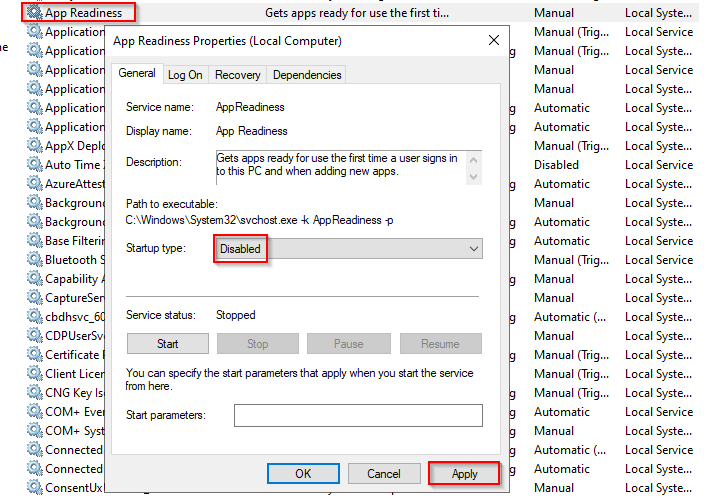
- If the 'RemoteApp Stuck' behavior occurs along with a black screen in classic RDP display mode, we recommend disabling the following service (AppReadiness), restarting the server, and checking whether the issue still persists afterwards :
#5. Network layer and UDP
- Check if the user is connected through VPN; test with and without VPN if possible.
Frequent freezes or "MS RemoteApp" hangs are often caused by MTU (Maximum Transmission Unit) mismatches or fragmentation issues over VPN tunnels. Ensure the VPN adapter's MTU is optimized (usually 1350 or 1400) to prevent packet loss.
- If the session freezes at “Configuring Remote Session”, disable UDP on the client :
On the client machine, go to HKLM\SOFTWARE\Policies\Microsoft\Windows NT\Terminal Services\Client
Create a DWORD (32-bit) value named fClientDisableUDP and set it to 1.
Reboot and retest.
#6. Collecting client-side evidence
- .connect file used
- connection client logs from the client workstation if possible :
[HKEY_LOCAL_MACHINE\SOFTWARE\Digital River\ConnectionClient] “Debug”=“true”
The logs are located in C:\Users\Username\RDP6\logs directory if installation is per user or in C:\Program Files (x86)\Connection Client\RDP6\logs directory if installation is for all users.
- Check Windows logs from the event viewer of the client device, especially the Windows logs > System & Application sections.
- Check if an error event is generated pointing to mstsc.exe & TextInputMethodFormatter.dll (https://learn.microsoft.com/en-nz/answers/questions/2283337/remoteapp-crashing-on-windows-server-2025-with-win) :
#7. Collecting server-side evidence
- TSplus logs & configuration export : https://docs.tsplus.net/tsplus/advanced-features-logs/#enable-troubleshooting-mode
- Event viewer : please provide an export ("save as .evtx file") for the following sections, focusing on logs that contain error events :
- Windows logs > System
- Windows logs > Application
- Windows logs > Security
- Application and services logs > Microsoft > Windows > TerminalServices-LocalSessionManager > Operational
- Application and services Logs > Microsoft > Windows > RemoteDesktopServices-RdpCoreTS > Operational
- Application and services logs > Microsoft > Windows > UserProfileService >Operational
This issue can often be complex to resolve. This is why providing us with as much information as possible from the list above is crucial, allowing our team to assist you effectively and expedite the resolution process.
Thank you !